
Menu
Menu
Menu
PDF to Link: Learn How to Turn PDFs into Links with Analytics
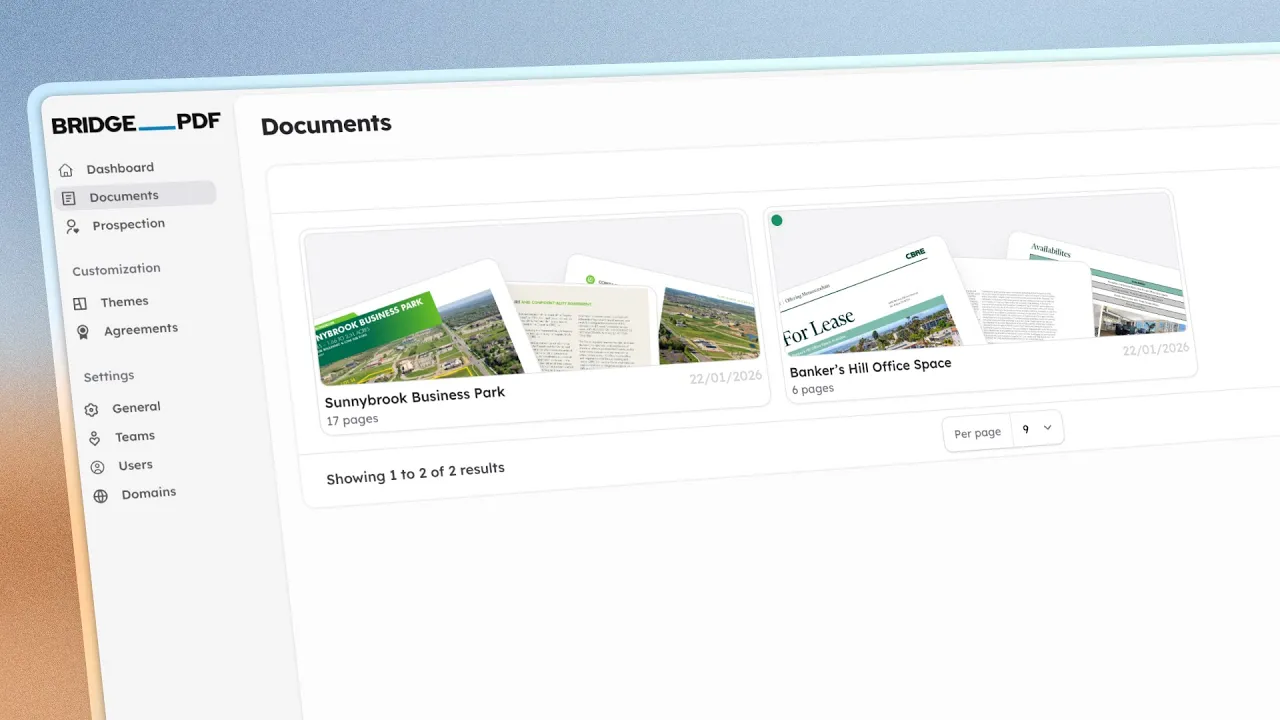
Attaching a PDF to an email is a bit like sending a letter with no tracking. You hit "send" and then silence. You're left wondering if your proposal was ever opened, if your white paper was actually read, or if it just got lost in a crowded inbox.
The good news is there's a much smarter way to work. By converting that static PDF to a link, you get back the control and insight you've been missing.
Stop Sending Blind PDF Attachments
Consider this: Sending a PDF leaves you in the dark. In sales, you can't know if a prospect spent two minutes or twenty on your proposal. As a marketer, you can't see which parts of your case study kept a reader interested or which they ignored. For anyone needing to ensure their information is noticed and understood, the old method isn't effective.
The problems with email attachments are pretty obvious once you stop to consider them:
Missing Engagement Data: No info on opens, views, or time spent.
No Post-Delivery Edits: Typos or pricing can't be updated once sent.
Recipient Hassles: Large files may be blocked, fill inboxes, or need downloads.
The Scale of the Problem
We're talking about a massive, industry wide habit. People create over 2.5 trillion PDFs every single year, and a staggering 90% of businesses rely on them for everything from contracts to marketing collateral.
To put it in perspective, let's break down the real world differences.
Static PDF Attachments vs. Dynamic PDF Links
This quick comparison shows the clear advantages of using a shareable link over a traditional file attachment.
Feature | Traditional PDF Attachment | Dynamic PDF Link |
|---|---|---|
Tracking & Analytics | None. You have no idea if it was opened or read. | Detailed analytics on opens, views, time per page. |
Updating Content | Impossible. You have to resend a new version. | Instantly update the file, even after sharing the link. |
Security & Access | None. Once sent, anyone can save or forward it. | Granular controls like password protection and access revocation. |
Recipient Experience | Requires downloading, can be blocked by firewalls. | Opens instantly in any browser, no download needed. |
File Size Limits | Often restricted by email server limits (e.g., 25MB). | No practical limit, handles large files with ease. |
The takeaway is clear: moving from attachments to links isn't just a minor upgrade. It's a fundamental shift that gives you control, security, and the data you need to work smarter.
Picking the Right Tool to Turn Your PDF into a Link
When you need to share a PDF as a link, you've got a few roads you can take. The most obvious choices, like Google Drive or Dropbox, are fine for quick, casual sharing. They get the job done by creating a simple link, but that's pretty much where their usefulness ends. For any kind of professional use, they just don't cut it.
If you're using documents for sales, marketing, or any business purpose, you need a tool designed for that world. This is where specialized platforms like Bridge PDF come in. They’re built to solve what I call the "engagement black hole," that frustrating moment when you send a document and have no idea if it was ever opened, let alone read. These tools give you the crucial intelligence you’ve been missing.
What to Look for in a Business-Grade Tool
Don't just settle for a tool that spits out a link. For business, you need features that give you a competitive edge. Here’s what I’ve found actually moves the needle:
Instant Alerts: Get notified as soon as someone opens your proposal, helping you time your follow-up calls better.
Detailed Page Views: See which parts of your document get the most attention, like if they spend time on pricing or skip case studies.
Lead Capture: Collect emails by requiring it before someone views your document.
CRM Sync: Ensure all engagement data is automatically updated in your CRM, like HubSpot or Salesforce.
These are the capabilities that elevate a simple PDF to link conversion into a powerful sales and marketing asset.
The dashboard shown above is a perfect example of what you're missing with basic file sharing services. It’s this kind of deep insight that lets you shift from passive sharing to active, informed communication. To get a better sense of what’s possible, it’s worth exploring a full list of advanced PDF features.
How to Create Your First Shareable PDF Link
Jumping from a static PDF file to a live, shareable link is quicker than you might think. With a tool like Bridge PDF, you can get your document uploaded and your sharing settings dialed in within a few minutes. The whole point is to make it easy, getting you from a file on your desktop to a powerful asset without any technical roadblocks.
Let's walk through what that actually looks like.
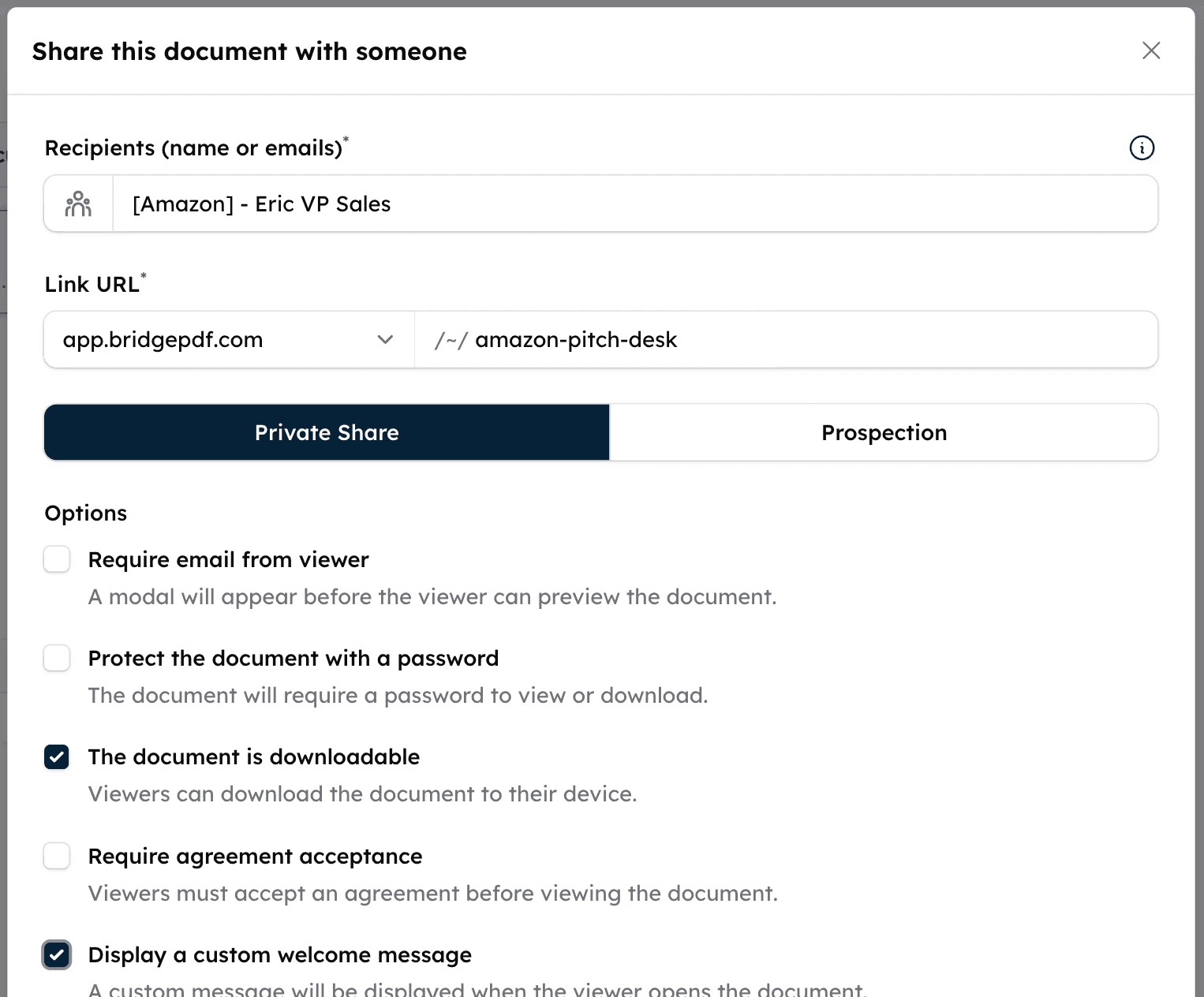
The first move is just getting your document into the system. Most platforms have a simple drag and drop uploader, so you can grab that sales proposal, new catalog, or onboarding guide right from your computer and pull it in. Once it's uploaded, you get to the good part: customizing the link itself.
Setting Up Your Link and Goal
Before you hit "share," take a moment to think about what you want this link to do and how you want it to look. This is the critical step that elevates a simple file hosting link into a strategic business tool.
First, you'll need to decide on the link's domain. You usually have a few choices:
App Domain: This is the easiest option, using the app’s standard URL. It's fast and gets the job done.
Short Link Domain: You can go for a cleaner, shorter URL (like
pdf2.link) that looks much better when you're sharing on social media or in a quick message.Custom Domain: For a truly professional touch, you can use a custom domain you've already set up. This keeps everything on brand and builds trust.
After picking a domain, you can customize the end of the URL, the "slug," to make it memorable, like yourcompany.com/q4-sales-report.
This is the kind of thinking that goes into picking the right tool for the job in the first place.
As you can see, the journey from basic file storage to a specialized tool is all about matching the platform’s features to what you're trying to achieve.
Next up, you'll define your "goal" for the link. This is a key setting that changes which features are available. The two goals you'll find are Private Share and Prospection.
Choosing your goal upfront is key. It tailors the available security and lead generation features to ensure your PDF to link conversion perfectly matches your intent, whether it's for a confidential contract or a public facing marketing asset.
A Private Share goal, for instance, is built for sending sensitive information to specific people. It unlocks security options like password protection. On the other hand, the Prospection goal is all about marketing and sales, giving you features like a splash page that viewers have to fill out first. We’ll dig into the specific features of each of these goals next.
Securing Your Link for Private Sharing
When you're sharing sensitive information, the last thing you want is for it to fall into the wrong hands. Turning your PDF into a link isn't just about tracking who sees it; it's about controlling how they see it. This is where a "Private Share" option becomes crucial, essentially turning your link into a secure vault instead of a public billboard.
Think about a consultant putting the final touches on a confidential audit for a client. Emailing that file is a huge risk. A much better approach is to create a secure link. This ensures only the intended recipient can access the findings, which keeps everything professional and confidential.
Adjusting Your Security Settings
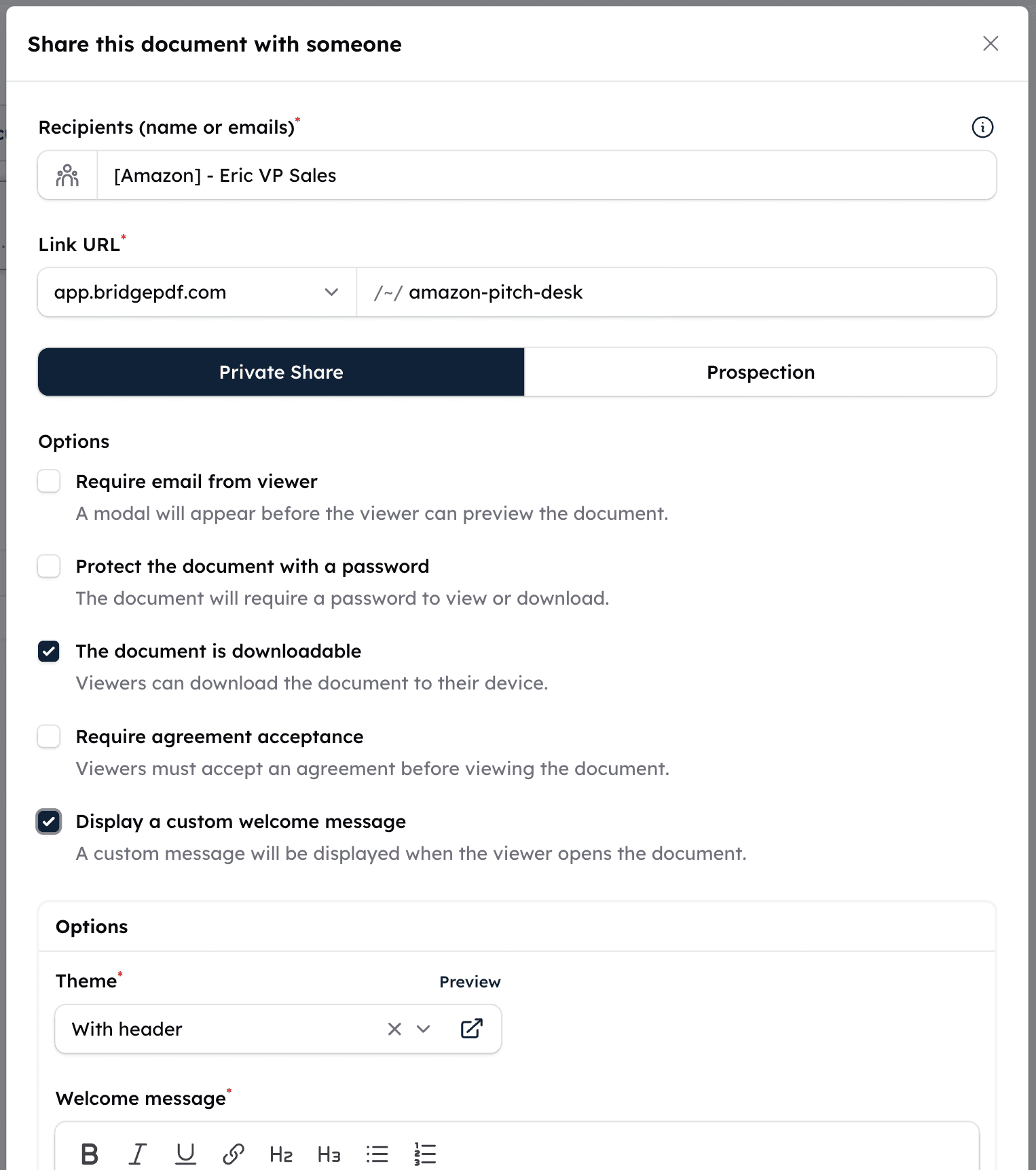
After selecting the Private Share option, you can choose from various settings to secure your document. Each option has a specific function, allowing you to set up appropriate security for your shared content.
Key controls available to you:
Email Request: A modal asks for the viewer's email to track file views.
Password Protection: Set a password for document access.
Download Control: Decide if viewers can save a copy; disable for sensitive files.
Agreement Requirement: Viewers must agree to terms before access.
Welcome Message: Show a personalized message upon opening the document.
These features all work together to give you total command over your documents. By mixing and matching email requirements, password protection, and download restrictions, you can share critical information with confidence. You know it’s secure and only being seen by the right people, a massive step up from the old "send and pray" method of email attachments.
Using Your PDF Link for Prospection
Sharing a PDF securely is important, but what if that document could also help grow your business? This is where you move from just sharing to generating leads. Every valuable document, like a report or case study, can become a marketing tool.
We'll focus on the Prospection goal, designed for sales and marketing efforts to find new contacts.
Turn Your Content Into a Lead Magnet
Instead of just sending out your report and hoping for the best, you can require people to share their contact information to access it. In exchange for your expertise, you get their details. This process turns passive readers into leads you can follow up with.
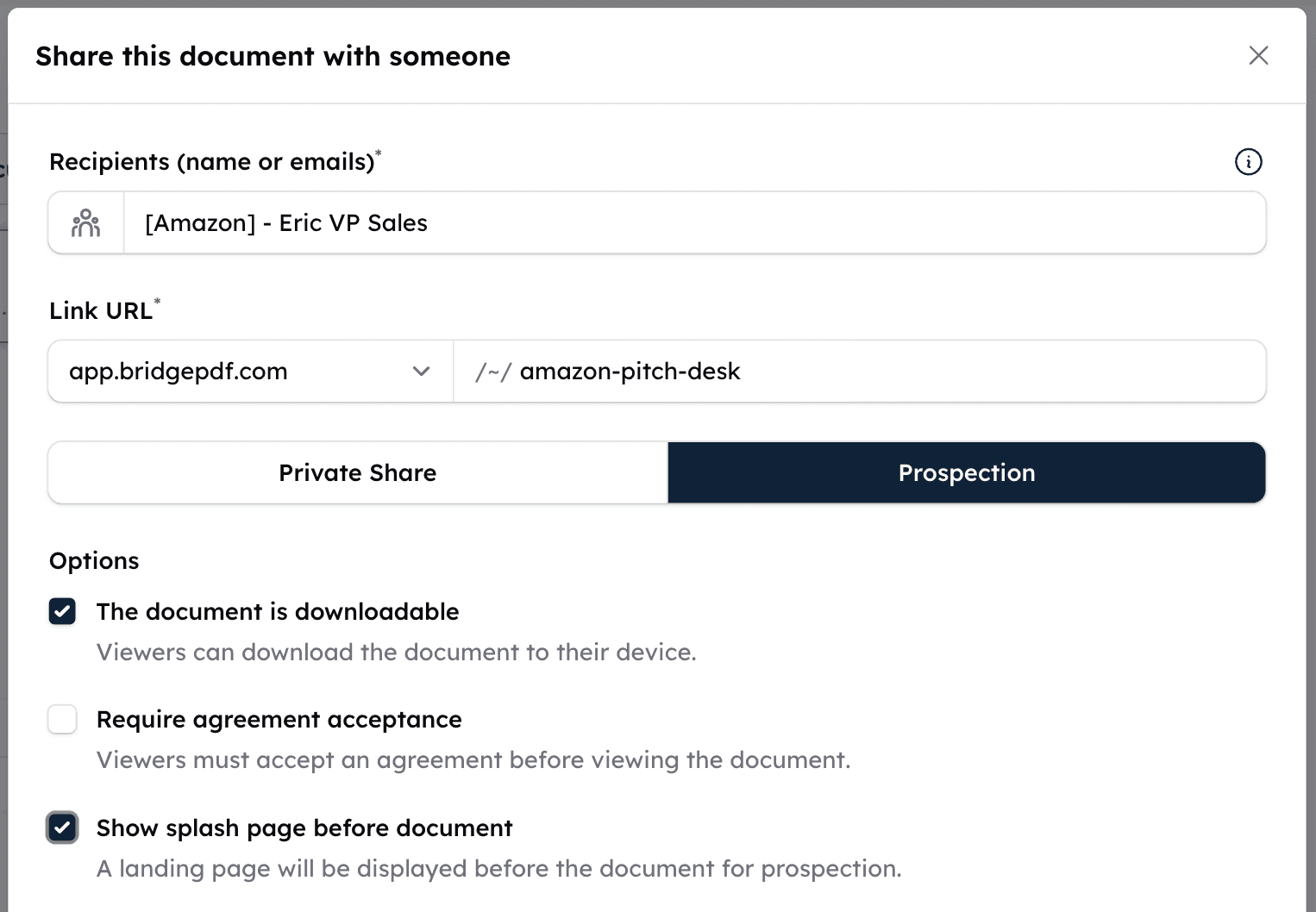
The key is the splash page. It acts like a mini landing page before someone views your document, collecting their information.
Here’s how to set it up:
Splash Page: Use a landing page to gather necessary details.
Download Option: Let users download after completing the form.
Agreement: Include a checkbox for terms acceptance.
For instance, a tech company can gate a white paper to build its newsletter list. Or a sales rep can see which prospects opened their brochure, providing warm leads to contact.
This strategy reflects a major market trend. In 2024, North America holds a 38.5% share of the PDF software market because sales teams use technology for an edge. Learn more about global tech adoption and sales strategies on Market Intel Reports.
Setting your PDF link for prospection means more than just sharing a file. You're creating an automated system to bring in new leads.
For tips on making these forms effective, see our guide on best practices for lead capture pages for PDFs.
How to Use Document Analytics to Close Deals
You've made a tracked link for your PDF. The real benefit comes when you use the analytics to understand your prospects and close deals faster.
Imagine sending a sales proposal and soon after, getting a notification that your prospect is viewing it. You see they’ve spent ten minutes on the pricing pages.
This is a strong buying signal. Instead of a generic follow-up, you can call with a specific question about the pricing tiers, making your contact timely and relevant.
Responding to Viewer Behavior
The data tells a story, and your strategy should adapt to the narrative. Different engagement patterns mean you should take different actions.
What if a prospect opens your deck but barely skims past the first page? This is a clear sign they weren't hooked. A great way to re-engage is to send a quick, value packed message that points them to the good stuff. Try something like, "I know you're busy, but the case study on page four shows exactly how we helped a company just like yours solve the exact problem you mentioned."
By analyzing document engagement, you shift from guessing to knowing. You can pinpoint a prospect's focus, identify their concerns before they voice them, and time your outreach for maximum impact.
This is how you connect the dots between the technology and your bottom line. For sales teams ready to take this even further, the next logical step is to feed these analytics directly into your CRM. You can learn more about syncing this data by exploring how to connect with tools like the Bridge PDF HubSpot integration.
Questions About Sharing PDFs as Links?
Switching from email attachments to link sharing can raise questions. Here are answers to common ones.
Can I Use My Own Domain for the Links?
Yes, and it’s recommended. Using a custom domain enhances professionalism and trust, like proposals.yourcompany.com/q4-report, compared to generic URLs.
What's the Difference Between Private Share and Prospection Goal?
It depends on your goal: security or lead generation.
Private Share is for sensitive documents, with options like password protection and email verification.
Prospection is for marketing, featuring a lead capture form before viewing the PDF.
"Private Share" is for secure sharing; "Prospection" is for lead generation.
What Control Do I Have Over Downloads?
You decide if downloads are allowed. Allow for ebooks or brochures; disable for confidential proposals to keep them secure.
Bridge PDF provides analytics and control over how your documents are accessed. Start your free trial today.
Attaching a PDF to an email is a bit like sending a letter with no tracking. You hit "send" and then silence. You're left wondering if your proposal was ever opened, if your white paper was actually read, or if it just got lost in a crowded inbox.
The good news is there's a much smarter way to work. By converting that static PDF to a link, you get back the control and insight you've been missing.
Stop Sending Blind PDF Attachments
Consider this: Sending a PDF leaves you in the dark. In sales, you can't know if a prospect spent two minutes or twenty on your proposal. As a marketer, you can't see which parts of your case study kept a reader interested or which they ignored. For anyone needing to ensure their information is noticed and understood, the old method isn't effective.
The problems with email attachments are pretty obvious once you stop to consider them:
Missing Engagement Data: No info on opens, views, or time spent.
No Post-Delivery Edits: Typos or pricing can't be updated once sent.
Recipient Hassles: Large files may be blocked, fill inboxes, or need downloads.
The Scale of the Problem
We're talking about a massive, industry wide habit. People create over 2.5 trillion PDFs every single year, and a staggering 90% of businesses rely on them for everything from contracts to marketing collateral.
To put it in perspective, let's break down the real world differences.
Static PDF Attachments vs. Dynamic PDF Links
This quick comparison shows the clear advantages of using a shareable link over a traditional file attachment.
Feature | Traditional PDF Attachment | Dynamic PDF Link |
|---|---|---|
Tracking & Analytics | None. You have no idea if it was opened or read. | Detailed analytics on opens, views, time per page. |
Updating Content | Impossible. You have to resend a new version. | Instantly update the file, even after sharing the link. |
Security & Access | None. Once sent, anyone can save or forward it. | Granular controls like password protection and access revocation. |
Recipient Experience | Requires downloading, can be blocked by firewalls. | Opens instantly in any browser, no download needed. |
File Size Limits | Often restricted by email server limits (e.g., 25MB). | No practical limit, handles large files with ease. |
The takeaway is clear: moving from attachments to links isn't just a minor upgrade. It's a fundamental shift that gives you control, security, and the data you need to work smarter.
Picking the Right Tool to Turn Your PDF into a Link
When you need to share a PDF as a link, you've got a few roads you can take. The most obvious choices, like Google Drive or Dropbox, are fine for quick, casual sharing. They get the job done by creating a simple link, but that's pretty much where their usefulness ends. For any kind of professional use, they just don't cut it.
If you're using documents for sales, marketing, or any business purpose, you need a tool designed for that world. This is where specialized platforms like Bridge PDF come in. They’re built to solve what I call the "engagement black hole," that frustrating moment when you send a document and have no idea if it was ever opened, let alone read. These tools give you the crucial intelligence you’ve been missing.
What to Look for in a Business-Grade Tool
Don't just settle for a tool that spits out a link. For business, you need features that give you a competitive edge. Here’s what I’ve found actually moves the needle:
Instant Alerts: Get notified as soon as someone opens your proposal, helping you time your follow-up calls better.
Detailed Page Views: See which parts of your document get the most attention, like if they spend time on pricing or skip case studies.
Lead Capture: Collect emails by requiring it before someone views your document.
CRM Sync: Ensure all engagement data is automatically updated in your CRM, like HubSpot or Salesforce.
These are the capabilities that elevate a simple PDF to link conversion into a powerful sales and marketing asset.
The dashboard shown above is a perfect example of what you're missing with basic file sharing services. It’s this kind of deep insight that lets you shift from passive sharing to active, informed communication. To get a better sense of what’s possible, it’s worth exploring a full list of advanced PDF features.
How to Create Your First Shareable PDF Link
Jumping from a static PDF file to a live, shareable link is quicker than you might think. With a tool like Bridge PDF, you can get your document uploaded and your sharing settings dialed in within a few minutes. The whole point is to make it easy, getting you from a file on your desktop to a powerful asset without any technical roadblocks.
Let's walk through what that actually looks like.
The first move is just getting your document into the system. Most platforms have a simple drag and drop uploader, so you can grab that sales proposal, new catalog, or onboarding guide right from your computer and pull it in. Once it's uploaded, you get to the good part: customizing the link itself.
Setting Up Your Link and Goal
Before you hit "share," take a moment to think about what you want this link to do and how you want it to look. This is the critical step that elevates a simple file hosting link into a strategic business tool.
First, you'll need to decide on the link's domain. You usually have a few choices:
App Domain: This is the easiest option, using the app’s standard URL. It's fast and gets the job done.
Short Link Domain: You can go for a cleaner, shorter URL (like
pdf2.link) that looks much better when you're sharing on social media or in a quick message.Custom Domain: For a truly professional touch, you can use a custom domain you've already set up. This keeps everything on brand and builds trust.
After picking a domain, you can customize the end of the URL, the "slug," to make it memorable, like yourcompany.com/q4-sales-report.
This is the kind of thinking that goes into picking the right tool for the job in the first place.
As you can see, the journey from basic file storage to a specialized tool is all about matching the platform’s features to what you're trying to achieve.
Next up, you'll define your "goal" for the link. This is a key setting that changes which features are available. The two goals you'll find are Private Share and Prospection.
Choosing your goal upfront is key. It tailors the available security and lead generation features to ensure your PDF to link conversion perfectly matches your intent, whether it's for a confidential contract or a public facing marketing asset.
A Private Share goal, for instance, is built for sending sensitive information to specific people. It unlocks security options like password protection. On the other hand, the Prospection goal is all about marketing and sales, giving you features like a splash page that viewers have to fill out first. We’ll dig into the specific features of each of these goals next.
Securing Your Link for Private Sharing
When you're sharing sensitive information, the last thing you want is for it to fall into the wrong hands. Turning your PDF into a link isn't just about tracking who sees it; it's about controlling how they see it. This is where a "Private Share" option becomes crucial, essentially turning your link into a secure vault instead of a public billboard.
Think about a consultant putting the final touches on a confidential audit for a client. Emailing that file is a huge risk. A much better approach is to create a secure link. This ensures only the intended recipient can access the findings, which keeps everything professional and confidential.
Adjusting Your Security Settings
After selecting the Private Share option, you can choose from various settings to secure your document. Each option has a specific function, allowing you to set up appropriate security for your shared content.
Key controls available to you:
Email Request: A modal asks for the viewer's email to track file views.
Password Protection: Set a password for document access.
Download Control: Decide if viewers can save a copy; disable for sensitive files.
Agreement Requirement: Viewers must agree to terms before access.
Welcome Message: Show a personalized message upon opening the document.
These features all work together to give you total command over your documents. By mixing and matching email requirements, password protection, and download restrictions, you can share critical information with confidence. You know it’s secure and only being seen by the right people, a massive step up from the old "send and pray" method of email attachments.
Using Your PDF Link for Prospection
Sharing a PDF securely is important, but what if that document could also help grow your business? This is where you move from just sharing to generating leads. Every valuable document, like a report or case study, can become a marketing tool.
We'll focus on the Prospection goal, designed for sales and marketing efforts to find new contacts.
Turn Your Content Into a Lead Magnet
Instead of just sending out your report and hoping for the best, you can require people to share their contact information to access it. In exchange for your expertise, you get their details. This process turns passive readers into leads you can follow up with.
The key is the splash page. It acts like a mini landing page before someone views your document, collecting their information.
Here’s how to set it up:
Splash Page: Use a landing page to gather necessary details.
Download Option: Let users download after completing the form.
Agreement: Include a checkbox for terms acceptance.
For instance, a tech company can gate a white paper to build its newsletter list. Or a sales rep can see which prospects opened their brochure, providing warm leads to contact.
This strategy reflects a major market trend. In 2024, North America holds a 38.5% share of the PDF software market because sales teams use technology for an edge. Learn more about global tech adoption and sales strategies on Market Intel Reports.
Setting your PDF link for prospection means more than just sharing a file. You're creating an automated system to bring in new leads.
For tips on making these forms effective, see our guide on best practices for lead capture pages for PDFs.
How to Use Document Analytics to Close Deals
You've made a tracked link for your PDF. The real benefit comes when you use the analytics to understand your prospects and close deals faster.
Imagine sending a sales proposal and soon after, getting a notification that your prospect is viewing it. You see they’ve spent ten minutes on the pricing pages.
This is a strong buying signal. Instead of a generic follow-up, you can call with a specific question about the pricing tiers, making your contact timely and relevant.
Responding to Viewer Behavior
The data tells a story, and your strategy should adapt to the narrative. Different engagement patterns mean you should take different actions.
What if a prospect opens your deck but barely skims past the first page? This is a clear sign they weren't hooked. A great way to re-engage is to send a quick, value packed message that points them to the good stuff. Try something like, "I know you're busy, but the case study on page four shows exactly how we helped a company just like yours solve the exact problem you mentioned."
By analyzing document engagement, you shift from guessing to knowing. You can pinpoint a prospect's focus, identify their concerns before they voice them, and time your outreach for maximum impact.
This is how you connect the dots between the technology and your bottom line. For sales teams ready to take this even further, the next logical step is to feed these analytics directly into your CRM. You can learn more about syncing this data by exploring how to connect with tools like the Bridge PDF HubSpot integration.
Questions About Sharing PDFs as Links?
Switching from email attachments to link sharing can raise questions. Here are answers to common ones.
Can I Use My Own Domain for the Links?
Yes, and it’s recommended. Using a custom domain enhances professionalism and trust, like proposals.yourcompany.com/q4-report, compared to generic URLs.
What's the Difference Between Private Share and Prospection Goal?
It depends on your goal: security or lead generation.
Private Share is for sensitive documents, with options like password protection and email verification.
Prospection is for marketing, featuring a lead capture form before viewing the PDF.
"Private Share" is for secure sharing; "Prospection" is for lead generation.
What Control Do I Have Over Downloads?
You decide if downloads are allowed. Allow for ebooks or brochures; disable for confidential proposals to keep them secure.
Bridge PDF provides analytics and control over how your documents are accessed. Start your free trial today.